Questions about EasySMX® S10 Lite Controller

FAQ

Manuals

Drivers

Ⅰ.FAQ 

Q1:How to Calibrate the Controller?Stick is drifting and trigger is not working properly, what to do?

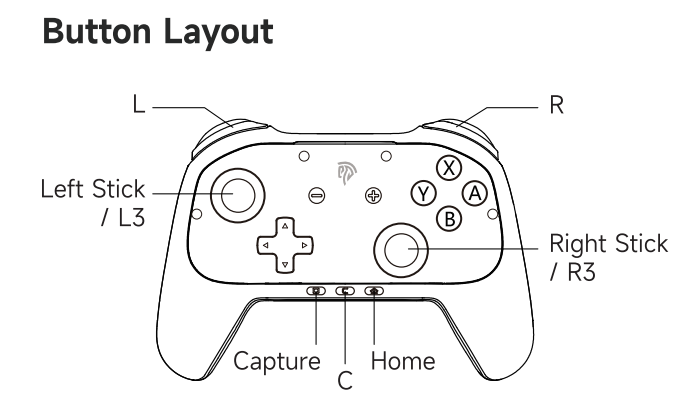
1. While controller is powered on, press and hold the “+”, “-”, and “B” buttons for 3 seconds to enter calibration mode.

2. The indicator LEDs will flash alternately as red.

3. Rotate the left and right joysticks three full turns each. And hold it horizontally for 3 seconds. Press the B button briefly to exit calibration mode.

Q2:How to Connect to Different Devices

a.Connect to Switch 2

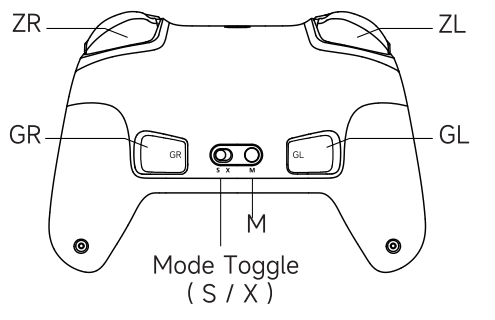
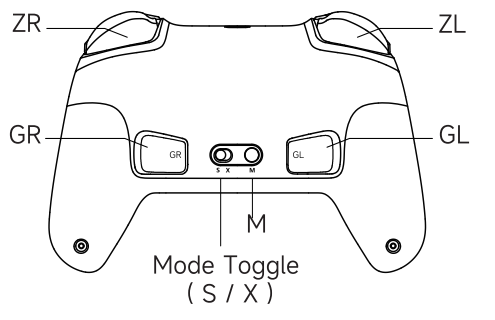
1. Set the switch on the back of the controller to the ‘S’ position. 

2. Hold the HOME button for 5 seconds until the LED starts flashing rapidly.

3. On the Switch console, navigate to [Controllers] > [Change Grip/ Order]; when the LED turns solid and a short vibration occurs,


b.Connect to Switch 1

1. Slide the Mode Toggle to the""S"" mode.

2. Press and hold the Home & Y buttons for 5 seconds to power on.

3. The controller's LED will flash (indicating pairing).

4. On the Switch, navigate to Controllers > Change Grip/Order to enter

pairing mode.

5. When the LED becomes steady with a short vibration to confirm pairing.

Reconnection:

Keep the Mode Toggle under ""S"" mode, and short-press the Home button

to reconnect your Switch.


c.Bluetooth connect to PC/Mobile Phone

1. Slide the Mode Toggle to the""X"" mode.

2. Press and hold the Home button for 5 seconds to power on.

3. The controller's LED will flash (indicating pairing).

4. Pairing with the device named ""Xbox Wireless Controller"" 

5. When the LED becomes steady with a short vibration to confirm pairing.


Q5: When I press a button, why the indicator is blinking? How to set turbo/rapid fire mode?

Turbo Setting

Manual Turbo: Press the M and A buttons to activate continuous firing while holding the ""A"" button.

Automatic Turbo: Press the M and A buttons together for the second time, then press the A button to activate auto-turbo,

press again to pause auto-turbo.


Cancelling Turbo

Press the M+A buttons together for the third time to cancel Turbo.

【Note】Adjustable Turbo speed settings (1-3 levels)

·Press M and push the left joystick left to decrease the Turbo speed.

·Press M and push the left joystick right to increase the Turbo speed.

Turbo buttons that can be set: A/B/X/Y/L/R/ZR/ZL

Q3:Programmable Button Setup

a.Set

1. With the controller connected, press and hold M and GL/GR buttons. The RGB light will flash red, indicating that you have entered programming mode.

2. Press the button you want to program (e.g. A or A and B).

3. Finally, press the GL/GR buttons once to save. The RGB light will return to its current state, indicating that programming was successful.


b.Disable

When the controller is connected, press the M button & GL/GR. The indicator light will flash red.

Then press the GL/GR button once to disable it.

Q4:Charging

Charging Indicators:
① Off State: When charging, the Indicator LED flashes red. The LED turns 
green once fully charged.
② Connected State: The LED indicates the current mode.
(X-input Mode / D-input Mode / Switch Mode)
Power Off:
Press and hold the Home button for 5 seconds to power off, or the controller
will automatically shut down after 10 minutes of inactivity.
Low Battery Warning:
When connected, if both Indicator LED flashes red rapidly, it indicates low
battery. Please recharge promptly.

Q6:Vibration Adjustment

·Increase vibration: Press the M button and push the left stick up.

·Decrease vibration: Press the M button and push the left stick down.

[Note] Adjustable from 0 to 4 levels.

Q7:Factory Reset

While the S10 Lite controller is powered on and connected (in any mode), press and hold the 【+】 + 【-】 + 【HOME】 buttons for 5 seconds.

Q8:What's In The Box

1 x EasySMX S10 Lite Gamepad

1 x Type-C Data Cable

1 x Instruction manual

Ⅱ.Manuals

Ⅲ.Drivers

a.Download


Firmware update steps:

1. Click on the upgrade package in the attachment,

2.Turn off the controller,then press and hold L3 ,using the data cable to connect to the controller on the PC,

3.When upgrade package recognise successfully, click upgrade and wait it to complete.

b.Testing Tools

To help you quickly check if your controller is working properly, we recommend the following testing tools for different devices:

i.For PC

ii.For Android Phones & Tablets (International Version)
Please download and install the app Game Controller Tester from Google Play to your device, then run it to test your controller.

iii.For iOS Devices
You have two options:
Download the Controller app from the App Store to your device, then use it for testing.