Questions about EasySMX® M15 Controller

FAQ

Manuals

Drivers

Ⅰ.FAQ 

Q1:How to Calibrate the Controller? Stick is drifting and(or) trigger is not working properly, what to do?

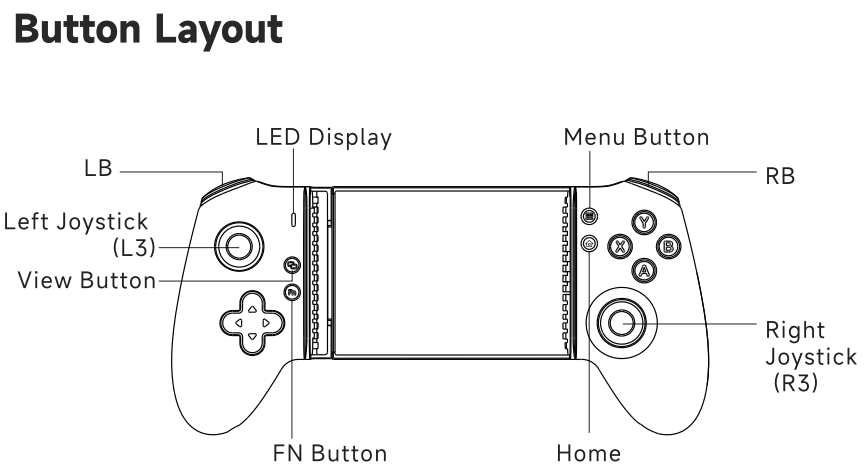
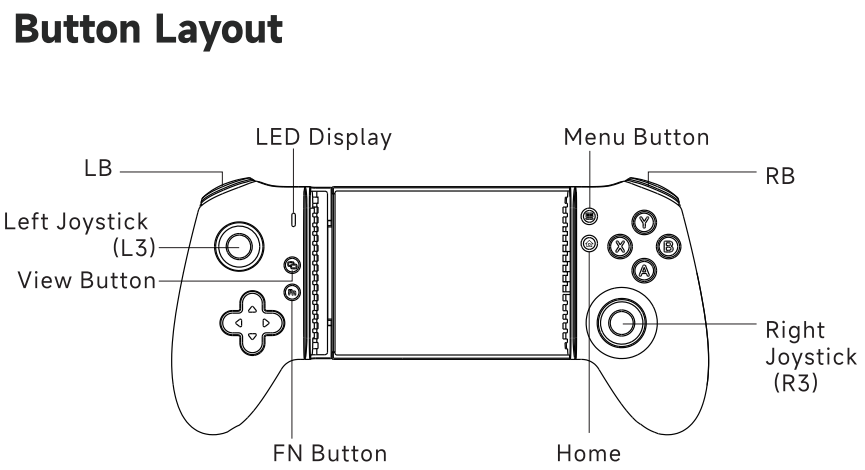
1. After connecting the controller to the console, press and hold the View + Menu buttons for 2 seconds.

2. After the white indicator light flashes slowly, rotate the left and right joysticks at a constant speed for 3 full circles, then press LT/RT 3 times at a constant speed.

3. Press the View + Menu buttons again, and the indicator light will flash twice quickly before returning to normal mode.


Click here to watch calibration tutorial
Q2:How to Update?

1. Open Moowii app , please switch to purple indicator light.
2. Tap 'add device', Select ""Xbox Wireless Controller"" in Bluetooth settings. Complete pairing (purple LED will stay solid)
3. Click 'About Device' and upgrade
4. Select Version 412 from historical versions and upgrade
5. Wait for progress bar completion (2-5 mins)
【Note】
Keep phone screen awake throughout
Remain on upgrade screen
Do not touch controller buttons

Q3:How to Connect to Devices

For Android Users

1. HID Mode: Hold FN + ASwitch to yellow light

2. Xbox 360 Mode: Hold FN + XSwitch to white light

3. PS Mode: Hold FN + BSwitch to green light 

4. Xbox Mode: Hold FN + TURBO Switch to purple light


For iPhone 15 Users

1. PS Mode:Hold FN + BSwitch to green light

Xbox Mode: Hold FN + TURBO Switch to purple light

Q4:Game Does Not Recognize Controller/Buttons

a.Cannot connect to Call of Duty (COD)

1. After the controller is successfully connected to the mobile phone, long press FN&TURBO buttons to switch to purple mode light.

2.Mobile phone Bluetooth interface search Xbox Wireless Controller for pairing, the blue indicator light is always on after successful connection.

【Note】When connecting the controller, you must close the game in the background. Once the controller is successfully connected, you can enter the game.

b.Cannot connect to Dead Cells

Close all background games, delete all Bluetooth pairing information between your mobile phone and controller, and press and hold FN+A on the controller to switch to yellow mode light to enter the game.

Q5:Programmable Button Setup

Use the Moowii app to switch to standard mapping mode, then conveniently select the target button to complete the custom remapping settings

Q6:Game or app cannot recognize the controller / Buttons not detected

Unable to connect to Call of Duty (COD)
1. After the controller is successfully connected to the mobile phone, long press FN&X buttons to switch to white mode light.

2.Mobile phone Bluetooth interface search Xbox Wireless Controller for pairing, the indicator light is always on after successful connection.

【Note】When connecting the controller, you must close the game in the background. Once the controller is successfully connected, you can enter the game.


Unable to connect to Dead Cells

Close all background games, delete all Bluetooth pairing information between your mobile phone and controller, and press and hold FN+Menu on the controller to switch to yellow mode light to enter the game.

Q7:What's In The Box

M15 Bluetooth:
1 x M15 mobile controller (New BlueTooth Version)

1 x Instruction manual

1 x Charging Cable

OR

M15 Type-C:

1 x M15 mobile controller

1 x Instruction manual

Ⅲ.Drivers

a.Download


Firmware update steps:

1. Open Moowii app , please switch to purple indicator light.

2. Tap 'add device', Select ""Xbox Wireless Controller"" in Bluetooth settings. Complete pairing (purple LED will stay solid)

3. Press 'About Device' and upgrade

4. Select Version 412 from historical versions and upgrade

5. Wait for progress bar completion (2-5 mins)

【Note】

Keep phone screen awake throughout

Remain on upgrade screen

Do not touch controller buttons

b.Testing Tools

To help you quickly check if your controller is working properly, we recommend the following testing tools for different devices:

i.For PC

ii.For Android Phones & Tablets (International Version)
Please download and install the app Game Controller Tester from Google Play to your device, then run it to test your controller.

iii.For iOS Devices
You have two options:
Download the Controller app from the App Store to your device, then use it for testing.