Questions about EasySMX® M20 Bluetooth Controller 

FAQ

Manuals

Drivers

Ⅰ.FAQ 

Q1:How to Calibrate the Controller? Stick is drifting and(or) trigger is not working, what to do?

1. Connect the controller to your device.  

2. Hold the View and MENU buttons for 2 seconds. The controller's LED will  flash white slowly to indicate  that calibration mode has been entered.

3. Rotate both sticks three times and press both triggers three times.  

4. Press MENU again. Calibration is complete when the LED flashes three times and then goes out.
Q2:How to Update?

Connect your mobile device to the GeekGamer 5.0 app. Tap the controller icon > Device Information > Device Update. This will update the firmware to the latest version. Once the device has been successfully recognised, tap Confirm, wait for the progress bar to complete, and then reconnect. (Please do not disconnect during the update process.)
【Note】
a. The app supports both upgrading and downgrading (you can downgrade to an older version).
b. After the update, you will need to restore the factory settings and recalibrate the device.
If you have any other questions, please feel fee to contact us.

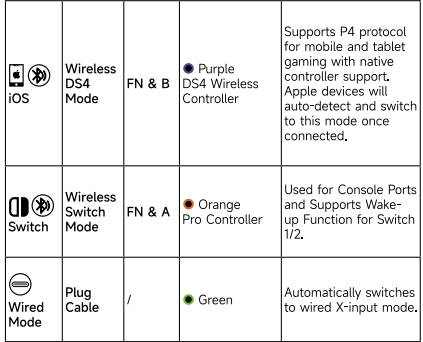
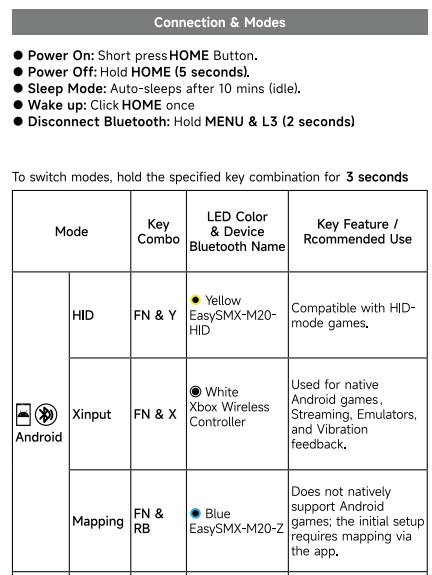
Q3:How to Connect to Devices


Q4:How to set up the turbo/auto-fire function? Why the home light is blinking red when I press a button?

1. Turbo: Hold Turbo & [Button]. (LED flashes red on press).

2. Auto-Turbo: Hold Turbo & [Button] again

3. Clear Turbo: Hold [Button] & press Turbo once.

4. Turbo Speed: Hold TURBO & D-pad Left/Right (10/20/30/40 Hz).

If turbo function is set on a button, the home light will flash red when you press the button.

Q5:Programmable Button Setup

1. Record: Hold FN & M1 (or M2) until Pink LED stays Solid. Press the desired button(s). Press M1 (or M2) again to save.

2. Clear: Hold FN & M1 (or M2) until Pink LED is Solid, then press M1 (or M2) again immediately.

If you have any other question, please feel free to let me know! Have a good day."

Q6:How to restore the controller to factory default settings?

With the device connected, press and hold FN + MENU + View for 3 seconds.


Q7:How to adjust the vibration/rumble intensity?

Press the FN button and move the R-Stick Up or Down to Adjusts intensity from 0 to 5.

And The vibration function is dependent on the game's native support.

Q7:Streaming platform configuration guide

1. For PS4/5: Hold FN + A

2. For Xbox: Hold FN + Menu / FN + X

3. For PC: Hold FN + X


For iOS User

1. For PS4/5: Hold FN + A

2. For Xbox: Hold FN + Menu

3. For PC: Hold FN + A

Q9:How to set up hair trigger mode? Why the trigger is not linear?

Hold the FN button and  the LT (or RT) button for  2 seconds.

A single flash of the pink LED  confirms successful setup,  while three flashes indicate cancellation.

Ⅱ.Manual


a.Download

Ⅲ.Firmware for M20 Bluetooth

a.Download


Firmware update step:

1.Connect your mobile device to the GeekGamer 5.0 app. 2.Tap the controller icon > Device Information > Device Update. 

This will update the firmware to the latest version. Once the device has been successfully recognised, tap Confirm, wait for the progress bar to complete, and then reconnect. (Please do not disconnect during the update process.)

【Note】

a. The app supports both upgrading and downgrading (you can downgrade to an older version).

b. After the update, you will need to restore the factory settings and recalibrate the device.

If you have any other questions, please feel fee to contact us."

b.Testing Tools

To help you quickly check if your controller is working properly, we recommend the following testing tools for different devices:

i.For PC

ii.For Android Phones & Tablets (International Version)
Please download and install the app Game Controller Tester from Google Play to your device, then run it to test your controller.

iii.For iOS Devices
You have two options:
Download the Controller app from the App Store to your device, then use it for testing.